

Close Menu
  • Home
  • News
  • Reviews
  • PC
  • Playstation
  • Xbox
  • Nintendo
  • Videos
  • Youtube
  • Gaming Store

Subscribe to Updates

Get the latest creative news from FooBar about art, design and business.

What's Hot

Yellow 💛 vs Red ♥️ Stickman ❓#shorts #gaming

June 10, 2026

Xbox Getting Creative About Next-Gen Consoles To Deal With Cost

June 10, 2026

Pragmata Review (PS5) | Push Square

June 10, 2026
Facebook X (Twitter) Instagram
  • Home
  • Contact Us
  • Privacy Policy
  • Disclaimer
  • DMCA
  • Editorial policy
  • Affiliate Disclosure
X (Twitter) YouTube
Gamers News Hub
Demo
  • Home
  • News

    Xbox Getting Creative About Next-Gen Consoles To Deal With Cost

    June 10, 2026

    Valheim Finally Has A 1.0 Release Date

    June 9, 2026

    Todd McFarlane Reveals New Fallout and Helldivers 2 Figures

    June 8, 2026

    E-Day PS5 Ahead Of Xbox Showcase

    June 7, 2026

    How Best To Use The New Sprites In Fortnite Chapter 7 Season 3

    June 6, 2026
  • Reviews

    The Acolyte couldn’t make up it’s damn mind

    July 18, 2024

    Nintendo World Championships: NES Edition review

    July 17, 2024

    House of the Dragon season 2 episode 5 slays a dragon it shouldn’t have

    July 16, 2024

    Longlegs is a fantastic horror movie, but it’s funny, not scary

    July 14, 2024

    The new Disney princess board game is just as fun as I dreamed

    July 13, 2024
  • PC

    The Mortal Shell 2 open beta was downloaded 250,000 times over the weekend

    June 10, 2026

    Google reportedly orders at least three million chips from Intel to arrive in 2028, as TSMC struggles to keep up with the AI boom

    June 9, 2026

    The best Amazon Prime Day 2026 gaming headset deals: I’m hunting down the best-sounding cans for the lowest prices

    June 8, 2026

    The new Crazy Taxi has a generative AI disclosure on its Steam page, and people are not happy

    June 7, 2026

    Halloween teases single-player slash ’em up campaign in grisly new trailer

    June 7, 2026
  • Playstation

    Pragmata Review (PS5) | Push Square

    June 10, 2026

    PS5 Players Can Try 2 Beautiful Upcoming Games for Free

    June 9, 2026

    16 games coming to PS5 – PlayStation.Blog

    June 8, 2026

    Invincible VS Review (PS5) | Push Square

    June 7, 2026

    Watch Summer Game Fest 2026 Livestream Here for PS5 News

    June 6, 2026
  • Xbox

    Star Wars Zero Company: How Some of the Greatest Minds in Tactics Games are Pushing the Genre, Again

    June 10, 2026

    Rebuilding Brotherhood: How Gears of War: E-Day Renews a Legendary Franchise

    June 8, 2026

    Final Fantasy VII Revelation: Coming to XBOX Spring 2027

    June 7, 2026

    A New Sample to Get You Started Faster

    June 5, 2026

    Age of Empires Mobile: PC Edition Launches June 23 – Wishlist Now! – Age of Empires

    June 4, 2026
  • Nintendo

    Atelier Karia gets a 2027 release, Atelier Yumia gets a Switch 2 glow up

    June 10, 2026

    Out of Words Hands-on Preview – Hands-on Preview

    June 9, 2026

    Koei Tecmo Is Bringing Its Next Action RPG To Switch 2 Early Next Year

    June 8, 2026

    811 – Japan Trip Adventures, StreetPass Finds, and 3DS Classics

    June 7, 2026

    Review: Smalland: Survive the Wilds (Switch 2)

    June 6, 2026
  • Videos

    Yellow 💛 vs Red ♥️ Stickman ❓#shorts #gaming

    June 10, 2026

    Granny Using Firecrackers And Spider Mom Using Fireballs To Kill Me In Granny Diwali Mod 😱!

    June 10, 2026

    I Became Girl Gamer in Free Fire 😁 New Horse Skin – Tonde Gamer

    June 10, 2026

    I Tried Every New Cloud Gaming Apps of 2026 !!

    June 9, 2026

    Like Snakes in a Barrel💀 #gaming #shorts

    June 9, 2026
  • Youtube
  • Gaming Store
Gamers News Hub
Home»PC»How to install Stardew Valley mods
PC

How to install Stardew Valley mods

ValhalladiddeBy ValhalladiddeFebruary 21, 2026No Comments6 Mins Read
Facebook Twitter Pinterest Reddit LinkedIn Tumblr Email
How to install Stardew Valley mods
Share
Facebook Twitter Pinterest Reddit Email

There’s plenty to do in the vanilla valley, but the sky is the limit once you learn how to install Stardew Valley mods. With so much community support, it’s an easy game for first-time modders to dive into, but modding can still be an intimidating task.

The modding scene for ConcernedApe’s farming sim is easily one of my favorites, and with a good primer on the basics maybe it can be one of yours, too. To help you get there, I’ll walk you through how to install Stardew Valley mods with a breakdown of SMAPI (a required framework for loading mods), popular download resources, and getting started with a mod manager.

How to install Stardew Valley mods


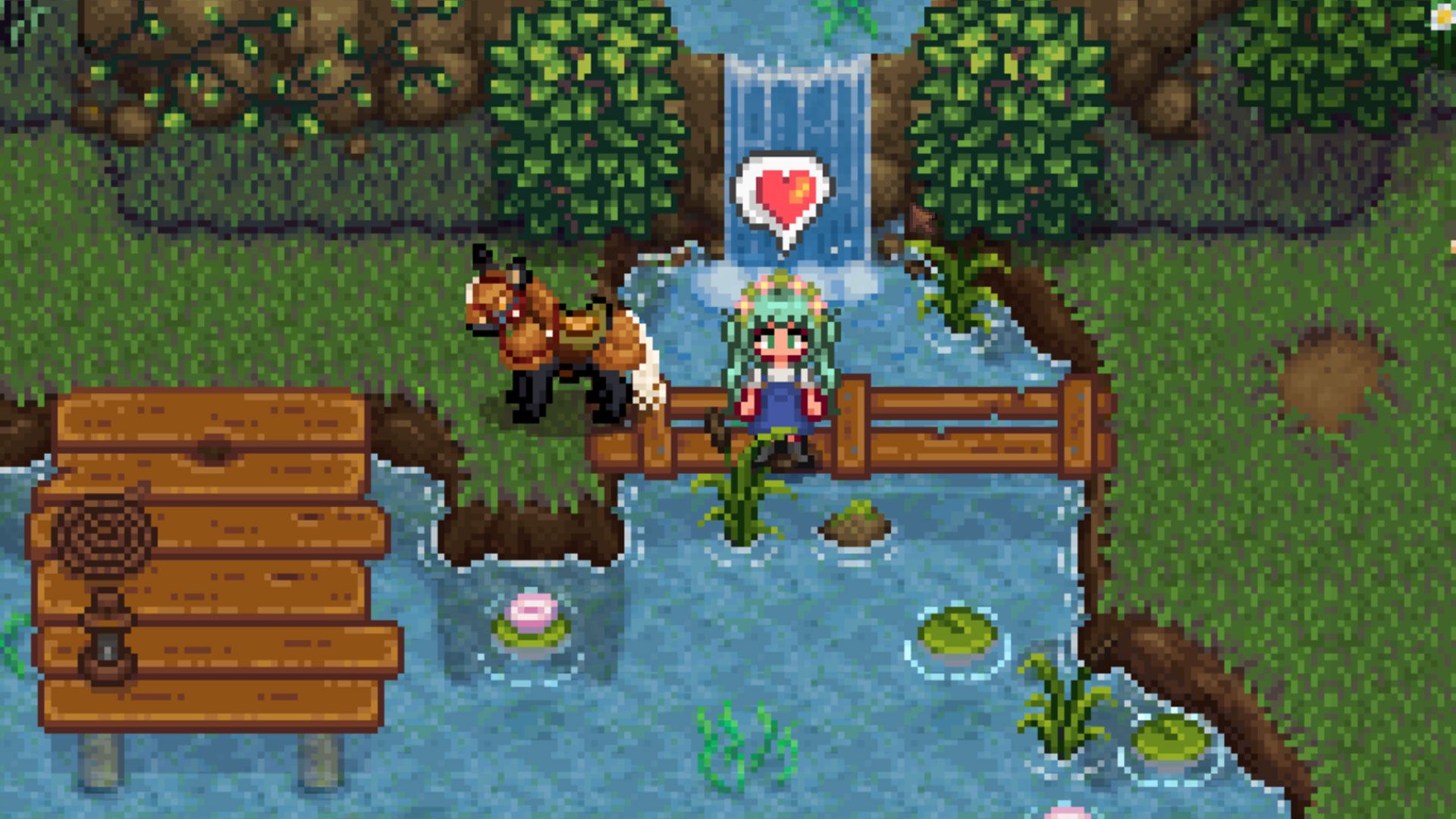
(Image credit: ConcernedApe)

This guide is organized into three parts. We’ll start by downloading basic Stardew Valley mod tools, then go on to installing SMAPI and the Stardrop mod manager. Players familiar with the first steps can use the navigation on the left to skip ahead, or keep on scrollin’ to start from square one.


Related articles

Download basics like SMAPI and Stardrop first

You’ll need a few basic tools to install Stardew Valley mods and get them running smoothly. I strongly recommend downloading Stardrop and Content Patcher, but the Stardew Modding API (SMAPI) is the only absolute must.

To follow along with the guide, download SMAPI, Stardrop, and Content Patcher. Extract all three to a central folder for easy access.

Swipe to scroll horizontally
⚙️ Recommended downloads to start modding

Tool

Utility

Required

Description

SMAPI

Mod loader

✅

Popular framework for launching Stardew Valley with mods

Stardrop

Mod manager

⚠️

Keeps files organized with options for updates or multiple profiles to enable or disable certain mods

Content Patcher

Mod tool

⚠️

Dynamic mod loader, allows mods to load without replacing game files. Technically not required, but strongly recommended

Alternative Textures

Mod tool

❌

Similar purpose to Content Patcher, but less common

Where to find Stardew Valley mods

You can download individual mods from popular hubs listed below, but get the basics above up and running before amassing any unwieldy collections.

Where to find the Stardew Valley mod folder

Your Stardew Valley mod folder should be inside of your game directory. You’ll want to have the exact folder directory handy to make sure SMAPI and Stardrop sort mods into the correct directory.

Keep up to date with the most important stories and the best deals, as picked by the PC Gamer team.

Swipe to scroll horizontally
📂 Default Stardew Valley mod folder locations

OS / Store

Directory

Windows (Steam)

C:\Program Files (x86)\Steam\steamapps\common\Stardew Valley\Mods

Windows (GOG)

C:\Program Files (x86)\GOG Galaxy\Games\Stardew Valley\Mods

Linux (Steam)

~/.local/share/Steam/steamapps/common/Stardew Valley/Mods

Linux (GOG)

~/GOGGames/StardewValley/game/Mods

After launching Stardew Valley at least once and installing SMAPI, you can install mods by placing them directly into the folder. All mods must be inside of their own folder inside of the mods folder, so your path looks like this: /Stardew Valley/Mods/Mod Name

You don’t need a mod manager, but I recommend using Stardrop instead of unzipping and organizing them in the folder yourself. Stardrop keeps downloads tidy and easy to troubleshoot.

How to install SMAPI (Stardew modding API)

SMAPI is the mod loading framework making all this possible—your most important piece of the process. After downloading the loader and launching Stardew Valley vanilla at least once, extract SMAPI’s contents into any directory and double click the correct bat file to install.


Related articles

This process should leave you with a new mod folder and the StardewModdingAPI.exe inside the game’s main directory.

Here’s a full step-by-step on how to install SMAPI for Windows or Linux users:

Download and extract SMAPI

  1. If modding a fresh install, launch Stardew Valley unmodded at least once
  2. Download and extract SMAPI; the location doesn’t matter
  3. Run the Install on Windows.bat file (or Linux)
  4. Follow the console instructions to install SMAPI in the game directory
  5. Next steps depend on your storefront, either Steam or GOG

The Steam properties window for Stardew Valley showing editing startup text

Steam’s Launch Options menu (Image credit: Screenshot via PC Gamer / Andrea Shearon)

Steam users

  1. Right click Stardew Valley from the Steam library
  2. Under General, look for the Launch Options text box and enter:
Swipe to scroll horizontally

“C:\Program Files (x86)\Steam\steamapps\common\Stardew Valley\StardewModdingAPI.exe” %command%

GOG users

  1. Right click Stardew Valley from the GOG library
  2. Select Manage Installation, then Configure
  3. On the Features tab, enable Custom Executables/Arguments
  4. Click Add Another Executable
  5. Select StardewModdingAPI.exe from the game directory
  6. Check the Default Executable option under the modding API

How to install Stardrop mod manager

The Stardrop mod manager file contents unzipped and in file explorer

Boot up Stardrop.exe to start modding (Image credit: via PC Gamer / Andrea Shearon)

Extract the Stardrop folder anywhere on your desktop—I use my Documents folder for safekeeping—and double click Stardrop.exe to launch the mod manager for the first time. This is the tool that will install, remove, enable, or disable mods for you. It makes the process a million times easier.

Opening Stardrop for the first time

When loading Stardrop for the first time, the exe asks if you would like to “associate the NXM protocol with Stardrop” to automatically install downloads from Nexus Mods. I always do this, but it’s optional.

  • Yes – Automatically download and install a mod after clicking a Nexus link
  • No – Manually add files into Stardrop yourself

The Stardew Valley mod manager, Stardrop, with its settings window circled to illustrate where files directories should be

(Image credit: Screenshot via PC Gamer / Andrea Shearon (Stardrop by Pathoschild))

Configuring Stardrop directories

Navigate to View > Settings and check all three file paths for SMAPI, the Stardew Valley Mod folder, and a new Stardrop Installed Mods folder. The new addition is where Stardrop will dump your mods.

Swipe to scroll horizontally
📂 Stardrop settings

Path

Example Folder Path Setup

SMAPI

C:\Program Files (x86)\Steam\steamapps\common\Stardew Valley

Mod Folder

C:\Program Files (x86)\Steam\steamapps\common\Stardew Valley\Mods

Stardrop Installed Mods

C:\Program Files (x86)\Steam\steamapps\common\Stardew Valley\Mods\Stardrop Installed Mods

Installing mods through Stardrop

If you don’t use the Nexus Mods protocol, you can drag and drop zipped mods directly into Stardrop’s interface or click File > Add Mods and select the compressed file. Stardrop will unpack it and handle the rest.

With your mods loaded in Stardrop, click the box beside your new additions to enable them. If you want to disable a mod, uncheck the same box. Click Save Configs when you make any changes and restart the game.

How to install Content Patcher and Alternative Textures

You can automatically install Content Patcher through Stardrop, or visit Nexus Mods for a separate download. Content Patcher doesn’t do anything as a standalone mod, but tons of modders use it to load custom assets without altering the base game files.

Alternative Textures is similar to Content Patcher and they’re compatible with each other, but typically works through in-game items like the Paint Bucket or Scissors while providing multiple options for customization. That’s not an option with Content Patcher.

Swipe to scroll horizontally
⚖️ Content Patcher and Alternative Textures

Feature

Content Patcher

Alternative Textures

Replaces original game file

❌

❌

Limit per asset ID

Only one can be active at a time

Unlimited

Enabled via in-game item

❌

✅

Should I use Content Patcher, Alternative Textures, or both?

You can use Content Patcher and Alternative Texture mods together, but I would prioritize installing Content Patcher over everything else since so many modders use it.

When downloading mods, look for abbreviations like (CP) for Content Patcher or (AT) for Alternative Textures and select the correct version(s) depending on how you want to use the retexture.

CP mods are typically good for static elements you don’t plan on changing a lot, but keep in mind you can only have one CP mod at a time for the same asset. AT mods can overwrite CP changes or each other using items and other in-game menus on the fly, so you can have multiple AT files.

install mods Stardew Valley
Share. Facebook Twitter Pinterest LinkedIn Tumblr Reddit Email
Previous ArticleTruck Business Ka Revenge 🤬😱 Sand Mafia End Game🤯🤣 (GTA 5 Mods)
Next Article Aku Menyelesaikan Rintangan Kematian Menggunakan Mobil Realistic – Roblox Reach Top To Get Car
Valhalladidde
  • Website
  • X (Twitter)

Related Posts

The Mortal Shell 2 open beta was downloaded 250,000 times over the weekend

June 10, 2026

Google reportedly orders at least three million chips from Intel to arrive in 2028, as TSMC struggles to keep up with the AI boom

June 9, 2026

The best Amazon Prime Day 2026 gaming headset deals: I’m hunting down the best-sounding cans for the lowest prices

June 8, 2026

The new Crazy Taxi has a generative AI disclosure on its Steam page, and people are not happy

June 7, 2026

Halloween teases single-player slash ’em up campaign in grisly new trailer

June 7, 2026

An 8-bit Cuphead game is being programmed in assembly language for the Sega Master System

June 6, 2026
Add A Comment

Comments are closed.

Editors Picks

Yellow 💛 vs Red ♥️ Stickman ❓#shorts #gaming

June 10, 2026

Xbox Getting Creative About Next-Gen Consoles To Deal With Cost

June 10, 2026

Pragmata Review (PS5) | Push Square

June 10, 2026

Star Wars Zero Company: How Some of the Greatest Minds in Tactics Games are Pushing the Genre, Again

June 10, 2026
Top Reviews
Demo
About Us
About Us

Your source for the best gaming news.
This site is operating from Ads revenue.
Thank you for supporting us!

We're accepting new partnerships right now.

YouTube
Latest Posts

Yellow 💛 vs Red ♥️ Stickman ❓#shorts #gaming

June 10, 2026

Xbox Getting Creative About Next-Gen Consoles To Deal With Cost

June 10, 2026

Pragmata Review (PS5) | Push Square

June 10, 2026
Popular Posts

🥶😱The Ghost Top Criminal🥶😱 #freefire #freefireshorts #gamingtamizhan #comedy

August 20, 2025

🥶PLAYING WITH @LoLzZzGaming BGMI ID 😎

January 2, 2026

🥵 BROKE MY GAMING DEVICE AFTER THIS MOMENT | BIGGEST MISTAKE | RANDOM REACTION GAMEPLAY – DT GAMING

March 27, 2024
X (Twitter) YouTube
  • Home
  • Contact Us
  • Privacy Policy
  • Disclaimer
  • DMCA
  • Editorial policy
  • Affiliate Disclosure
Copyright ©️ All rights reserved. | Gamers News Hub

Type above and press Enter to search. Press Esc to cancel.

We are using cookies to give you the best experience on our website.

You can find out more about which cookies we are using or switch them off in .

Gamers News Hub
Powered by  GDPR Cookie Compliance
Privacy Overview

This website uses cookies so that we can provide you with the best user experience possible. Cookie information is stored in your browser and performs functions such as recognising you when you return to our website and helping our team to understand which sections of the website you find most interesting and useful.

Strictly Necessary Cookies

Strictly Necessary Cookie should be enabled at all times so that we can save your preferences for cookie settings.